Manage scattered project specifications and prompts in one place.
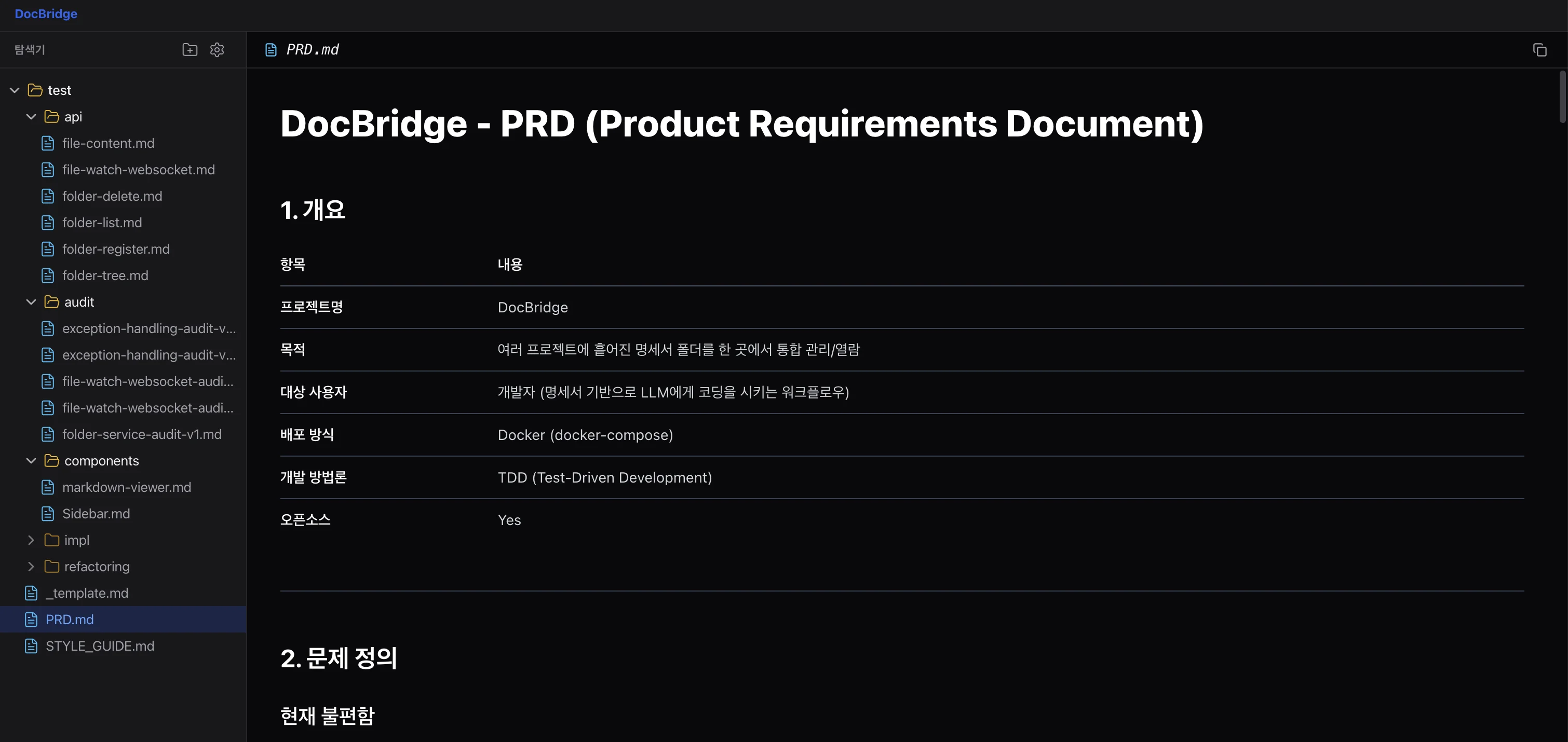
Accelerate your workflow with VS Code-style viewer and one-click copy.
Stop wasting time finding specs and prompts. Focus on creating.
prompt files (.md) in one unified viewDesigned with Developer Experience (DX) as the top priority.
Register multiple local project paths freely. Integrate not only `spec` folders but also your prompt library.
Changes are reflected in the viewer instantly via WebSocket upon save. Check the latest specs without refreshing.
With PrismJS syntax highlighting and one-click full copy, deliver specs to ChatGPT, Claude, etc., faster than ever.
Choose the method that fits your environment.
1. Download Project (Required)
Step 1. Download config files
# Create directory & move mkdir docbridge && cd docbridge # Download config files curl -o docker-compose.yml https://raw.githubusercontent.com/jih4855/DocBridge/main/docker-compose.deploy.yml curl -o .env https://raw.githubusercontent.com/jih4855/DocBridge/main/.env.example
2. Configuration (Required)
Step 1. Setup .env
# .env file content (example) PROJECT_ROOT=/Users/path/to/my-projects NEXT_PUBLIC_API_URL=http://localhost:8000 NEXT_PUBLIC_WS_URL=ws://localhost:8000 WATCHDOG_USE_POLLING=true
Step 2. Set
PROJECT_ROOT
💡 Tip: Using a parent folder (e.g., Documents) containing multiple projects or MD files allows you to manage them all at once.
3. Download Images (Optional)
Step 1. Pull latest version
Download pre-built latest version without building locally.
docker-compose pull
4. Run
Step 1. Run in background
Use -d option to keep server running after closing terminal.
docker-compose up -d
1. Download Project (Required)
Step 1. Clone Repository
git clone https://github.com/jih4855/DocBridge.git cd DocBridge
2. Configuration (Required)
Step 1. Create .env
cp .env.example .env
# .env file content PROJECT_ROOT=/Users/path/to/my-projects NEXT_PUBLIC_API_URL=http://localhost:8000 NEXT_PUBLIC_WS_URL=ws://localhost:8000 WATCHDOG_USE_POLLING=false
WATCHDOG_USE_POLLING=false is more
efficient.
Step 2. Set
PROJECT_ROOT
💡 Tip: Using a parent folder (e.g., Documents) containing multiple projects or MD files allows you to manage them all at once.
3. Backend Setup
Step 1. Virtual Env & Install
cd backend python -m venv venv # Mac/Linux source venv/bin/activate # Windows venv\Scripts\activate pip install -r requirements.txt
Step 2. Run Server
uvicorn main:app --reload
4. Frontend Setup
Step 1. Install Packages
cd frontend npm install
Step 2. Run Dev Server
npm run dev
Access URL after installation: http://localhost:3000
Manage specs with an intuitive workflow.
Click [+ Register] button and enter project name and path starting with `/data/`.
Expand registered projects in the sidebar to find spec files.
Click the file and use the [Copy] button on top right to paste into LLM chat.